Use the official app page for the current store and feature data.
PC input compatibility guide
Scary Game 2 Controller Support: Steam Input Setup
Trying to play Scary Game 2: The Mad Shepherd with a gamepad? This guide separates the current Valve compatibility signal from assumptions, shows a safe Steam Input path, and gives you a short test order for movement, interaction, and mouse-driven puzzles.
Checked November 16, 2026. Steam and Valve compatibility data can change after an update; use the live store page for the final device decision.
Quick answer
What does Scary Game 2 controller support mean right now?
The safest answer is conditional: the public Steam listing confirms a Windows PC game with exploration and interaction, while Valve compatibility data surfaced by a Steam Deck guide says all functionality works with the default controller configuration. That is useful evidence, but it is not a promise that every pad, glyph set, or custom layout will behave identically.
A Valve compatibility record reports all functionality with the default configuration.
Controller glyphs and interface text may not match or read perfectly on every device.
The game relies on observation, doors, items, and environmental puzzles rather than combat.
Keep a mouse nearby for drag-style mechanisms and for diagnosing a layout problem.
This page does not claim that an unconnected controller was physically tested here.
Scary Game 2 controller support is a compatibility question, not a new gameplay mode. The game remains a short, single-player horror experience built around walking through a village, noticing clues, and interacting with objects. A controller can make movement and camera work more comfortable, but it does not remove the need to understand the game's interaction prompts or its mouse-oriented puzzle behavior. Start by deciding whether you want a full controller layout or a hybrid setup that leaves a mouse ready for one awkward interaction.
The existing platforms page answers whether the game is associated with PC, Xbox, mobile, APK, or multiplayer searches. This article has a narrower job: connect a device, choose a Steam Input layout, test the essential actions, and recover safely if the game shows no response. The gameplay page explains the broader loop and the rotary lock; it does not establish a universal controller map. Keeping those boundaries visible prevents a generic gamepad profile from being mistaken for official documentation.
Because the available metrics contain no exact Similarweb record for this phrase, the article uses a local evidence gap and direct source checks. Valve compatibility text, the official Steam description, and your own current build are stronger than a third-party list that guesses button labels. Treat every mapping as a configuration you can verify, not as a permanent guarantee.
Scary Game 2 Steam Input
Set up a controller with Steam Input
Use the least invasive path first. Steam Input can translate a controller into the game's expected keyboard and mouse actions without replacing files or downloading a community executable. The labels below may differ slightly between Steam desktop, Big Picture, and Steam Deck, but the order remains the same.
1
Connect the device before launching
For a first test, connect a wired Xbox or USB controller directly to the PC. A wired pass removes Bluetooth pairing, battery, and wireless receiver variables. If you use a DualSense or another pad, confirm that Windows sees it in the system controller panel before opening Steam. Do not install a driver bundle from an unknown site just to make one game appear in a list.
Check: The controller should appear to Windows and Steam before Scary Game 2 starts.
2
Open the game's controller settings
In the Steam Library, select Scary Game 2: The Mad Shepherd, open the controller icon or the Manage Controller Layout entry, and inspect the current template. If Steam offers a default gamepad layout, begin there. The goal is to establish a known baseline before importing a community layout with unfamiliar bindings or macros.
Choose: Prefer the official or default template before a community profile.
3
Keep the layout simple
Map left stick to movement, right stick to camera, the primary face button to the game's main interact action, and a shoulder button to the action you use most often. Avoid mapping several functions to the same press until the basic route works. If the game expects a mouse click for a mechanism, use a trackpad, gyro, or a temporary mouse fallback instead of pretending the puzzle is broken.
Avoid: Do not add scripts, rapid-fire bindings, or downloaded executables to solve a mapping problem.
4
Launch once and test in a safe area
Start a new session or load a location where you can move without losing progress. Test walking, looking, crouching or sprinting if the current build exposes those actions, then try one door and one inspectable object. A menu responding to a controller does not prove that every in-world interaction is mapped, so test both menus and gameplay.
Test: Use a reversible room or early checkpoint before testing a late puzzle.
5
Save the working layout
When the controls respond, name the layout with the controller model and date. Keep a note of any action that still needs a mouse. If a future Steam update resets the profile, you can compare the old mapping with the new default instead of rebuilding it from memory. A saved layout is a convenience, not proof that the game officially supports every input device.
Record: Write down the device, Steam Input state, and the one or two actions that remain hybrid.
Test movement, interaction, and puzzle input
A controller setup is useful only when it completes the actions you care about. Run these checks in order and change one binding at a time. If a row fails, keep the result labeled as a configuration issue until you have ruled out a disconnected device or a game-state trigger.
| Action | What to try | What a useful result looks like |
|---|---|---|
| Move | Walk through an open path and stop at a doorway | The character moves without drift and stops when the stick returns to center. |
| Look | Turn toward a lamp, sign, or landmark | The camera follows the right stick at a controllable speed without a constant spin. |
| Interact | Open one door or inspect one obvious object | The same action that works with the mouse triggers the interaction once. |
| Inventory | Open the pause or item view if the build exposes one | Menu focus stays on the controller and does not trap the cursor off-screen. |
| Drag puzzle | Try a safe part of a rotary or mouse-led mechanism | The layout offers a trackpad, stick-to-mouse, or mouse fallback rather than a fake button press. |
| Recovery | Disconnect and reconnect, then reload the test area | You can restore the layout without deleting saves or reinstalling the game. |
The most important test is not a screenshot of a button prompt. It is whether the input produces a predictable result and whether you can recover when it does not. A controller may navigate a menu while failing to send the pointer movement that a rotating lock expects. That is a reason to keep a mouse or Steam Deck trackpad available, not a reason to invent an unsupported code or claim that every puzzle is controller-native.
Write down the exact failure: no input at all, wrong button glyphs, camera drift, a menu that keeps focus, or a puzzle that needs a pointer. These symptoms point to different fixes. A clean note also helps you compare a default layout with a custom one and report a reproducible issue to the developer without attaching private files.
Steam Deck and display checks
The direct SERP evidence for this topic is a Steam Deck page that reproduces Valve compatibility fields for Scary Game 2: The Mad Shepherd. It reports that all functionality works with the default controller configuration, while also flagging controller glyph mismatches and interface text that may not be legible. Read those statements together. They suggest a playable baseline, but they also tell you to expect presentation differences on a small screen or with a different controller family.
On Steam Deck, start with the default layout and the default graphics profile. Check whether the game shows Xbox-style glyphs while you are holding a different pad, and increase interface readability only through normal Steam or in-game settings. If the camera feels too fast, lower sensitivity before changing the entire layout. If text is hard to read, use the desktop view or a larger display for setup and keep the Deck for the actual run.
Do not confuse Steam Deck compatibility with Xbox or PlayStation console availability. The platforms page remains the right place for those questions. A Deck is a PC Steam environment with its own controller and screen constraints; a compatibility label does not announce a console port, a mobile version, or multiplayer support.
Fix common controller failures safely
Use the symptom as the branch. Keep your save files intact, avoid random DLL downloads, and return to the last known working layout after each change.
Steam does not see the controller
Reconnect the cable, try another USB port, and confirm the device in Windows before opening the game. For Bluetooth, check pairing and battery first. Do not install a second driver package while the operating system still reports the device as missing.
The menu works but gameplay does not
Open the Steam Input layout and compare the in-game bindings with the menu bindings. Test an open area, then restart once. A menu response alone cannot confirm that an action is mapped inside a loaded save.
The button prompts look wrong
Wrong glyphs are a presentation problem, not proof that the input failed. Check the controller type selected by Steam, then use the action's physical position rather than a copied screenshot. Keep the default layout while you isolate the mismatch.
A rotary lock needs a pointer
Use the mouse or a trackpad-to-mouse binding for the mechanism. The gameplay and lock guides explain the puzzle logic; this page only covers the input fallback. Do not skip a clue or install a mod because a stick cannot emulate a drag comfortably.
The camera spins or drifts
Disconnect other input devices, lower stick sensitivity, and check for a centered axis in Steam's calibration view. If the drift remains, switch to a wired device or mouse for diagnosis. Never overwrite a save to solve an axis problem.
A custom profile made things worse
Restore the default Steam Input template, close the game, reconnect the controller, and retest one action. Keep the old profile saved or export its notes before deleting it. A clean baseline is easier to report than a profile with stacked community changes.
Visual references for the setup
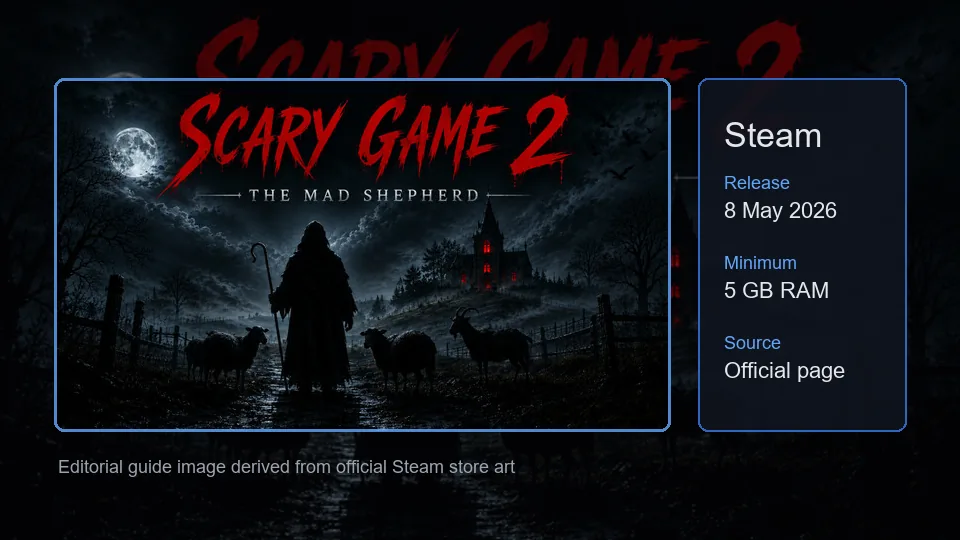
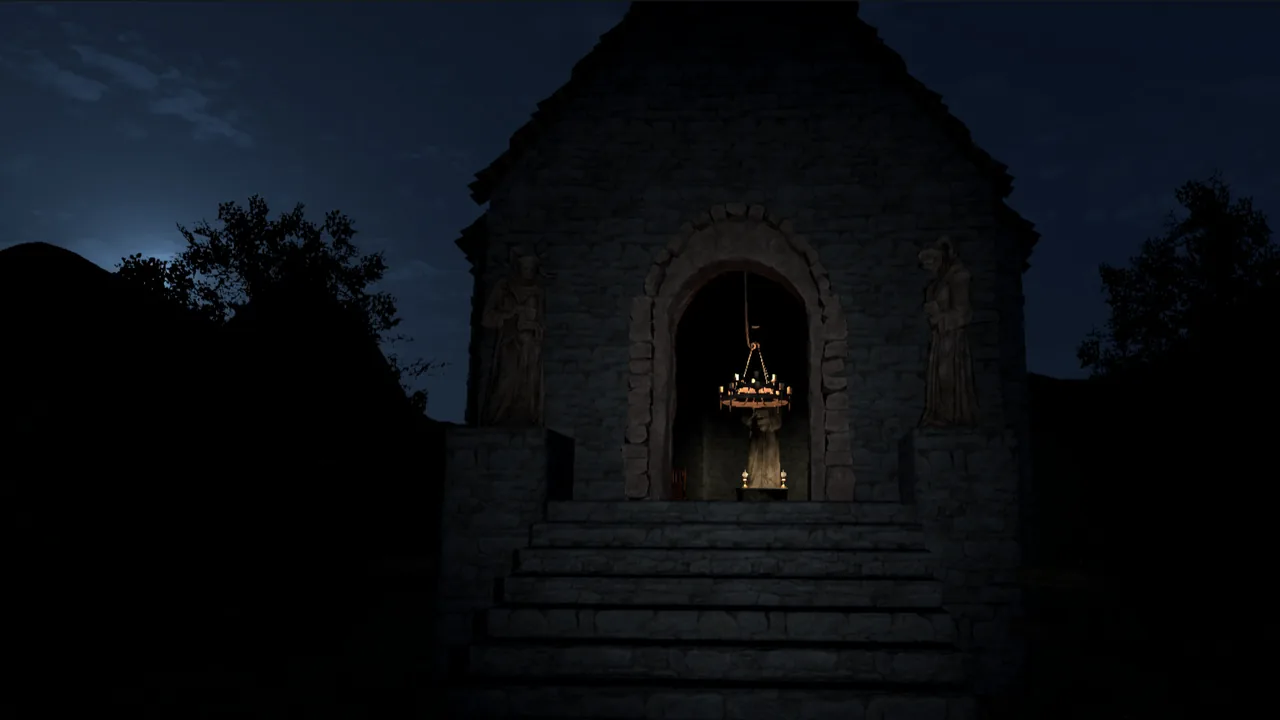
The page uses existing site WebP assets as editorial context. None is presented as an official button map, so the actual source and test steps remain in the text.
Limits, privacy, and evidence boundaries
This article does not install drivers, inspect your computer, or send controller data to a server. The suggested steps use Steam, Windows, and normal in-game controls. If a troubleshooting tool asks for an executable, a save archive, or a login token, stop and use the official support path instead. A controller setup should not require a cracked build, a replacement DLL, or a download mirror.
The phrase controller support can mean several things: a store feature flag, a default Steam Input profile, successful movement on one device, or a complete button map for every puzzle. Those are different claims. This page deliberately uses the narrowest wording supported by the sources and tells you where a mouse fallback is still sensible.
For the current release state, open the official Steam listing and compare the feature text, compatibility tab, and your installed build. If a later patch changes glyphs, input prompts, or Deck behavior, update the note rather than treating an old community layout as permanent documentation.
Scary Game 2 controller support FAQ
Short answers for players who want a device decision before they start a run.
The strongest public signal is Valve compatibility data reproduced by a Steam Deck guide: all functionality works with the default controller configuration. Treat that as a starting point, then test your own controller and keep a mouse available for pointer-driven interactions.
A wired Xbox or XInput controller is a sensible first test because Steam can usually identify it without extra software. The page does not claim that every Xbox model was tested. Confirm that Steam sees the device, start with the default layout, and verify movement and interaction in a safe area.
Steam Input may translate a DualSense into a gamepad layout, but glyphs and advanced features can vary. Pair it through normal Steam or Windows controls, choose a default layout, and judge the result by the action test rather than by a copied button chart.
Do not assume that every puzzle is controller-native. The game includes interaction and mouse-led mechanisms, so a hybrid controller plus mouse setup can be the most reliable choice. The dedicated lock and gameplay pages explain puzzle logic separately.
The available Valve compatibility signal says the default configuration works, while warning about controller glyph mismatch and interface text legibility. Use the current Steam compatibility tab for the final decision and test readability on your own Deck.
Steam may be presenting a generic or Xbox-style glyph set while you use another controller. Check the selected layout and use the physical button position during testing. Wrong labels do not automatically mean that the input path failed.
Check the cable, USB port, battery, Bluetooth pairing, and Windows device list before changing the game profile. Then restart Steam, restore the default layout, and test again. Avoid driver bundles and DLL downloads from unofficial pages.
It may help with movement around the puzzle, but the rotating lock can still need a pointer-style drag. Keep a mouse or trackpad fallback and use the lock guide for the clue and sequence. Controller support does not change the puzzle input requirements.
Sources and evidence boundaries
The guide combines first-party product information with a readable Valve compatibility signal. Third-party pages help locate evidence, but the live Steam page remains the final source for changing data.
Official Steam store page
Confirms the game entity, PC route, exploration focus, no-weapons boundary, languages, mature-content note, and system requirements.
Read official sourceSteam Club compatibility page
Reproduces Valve compatibility fields for the Steam Deck environment, including default controller configuration and glyph/readability caveats. Treat it as an evidence lead and recheck the linked Valve data.
Review compatibility notesGeneral controller mapping reference
A general input reference explains why SDL, XInput, DInput, and pointer mappings behave differently. It is not a Scary Game 2 support claim.
Read mapping concepts