1
Open your Steam Library
Find Scary Game 2: The Mad Shepherd in the library where you installed the game.
Use the installed game entry, not a mirror or a separate launcher.Steam language check
Yes. The official Steam language table currently lists both Spanish - Spain and Spanish - Latin America for Scary Game 2: The Mad Shepherd. This guide explains what the Interface and Subtitles marks mean, what is not confirmed, and how to check the Steam setting safely.
Checked on August 16, 2026 against the official Steam listing. Store language data can change, so use Steam as the final source before purchase or installation.
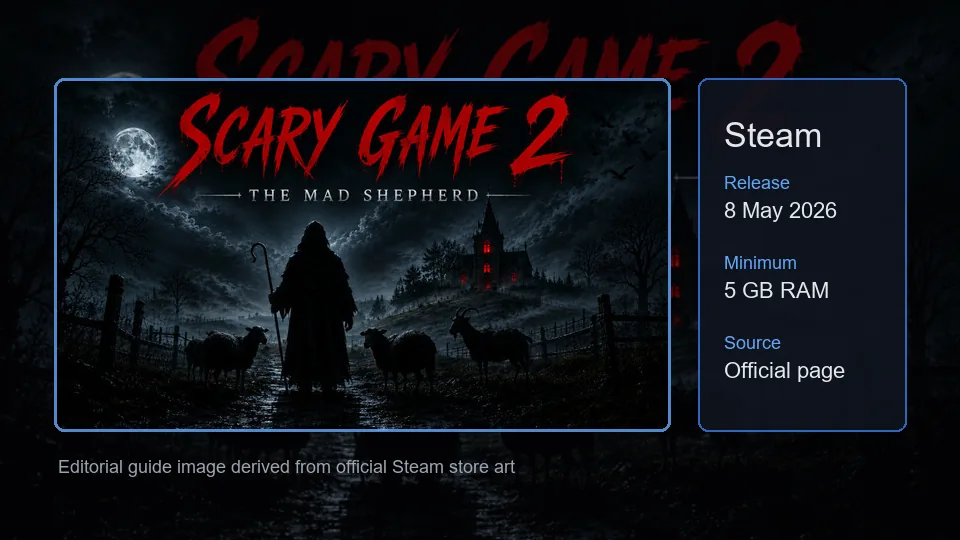
The useful distinction is not only whether Spanish appears on the list, but which parts of the game are marked for that language.
The Steam language table currently marks both columns for this Spanish variant.
Steam lists this as a separate Spanish row rather than a generic Spanish label.
The verified table does not show a full-audio check for the Spanish rows.
The store page is the source to recheck when the language table or game build changes.
The current Steam table shows Spanish as two regional rows. The table below reproduces the relevant support categories without turning an empty Full Audio cell into an unsupported claim.
| Steam language row | Interface | Full audio | Subtitles |
|---|---|---|---|
| Spanish - Spain | Listed | Not marked | Listed |
| Spanish - Latin America | Listed | Not marked | Listed |
| English | Listed | Not marked | Listed |
| Japanese | Listed | Not marked | Listed |
| French | Listed | Not marked | Listed |
| German | Listed | Not marked | Listed |
| Portuguese - Brazil | Listed | Not marked | Listed |
| Korean | Listed | Not marked | Listed |
Source boundary: the official Steam page currently displays 29 language rows and the Spanish variants above. A blank or absent full-audio mark is reported as not marked, not as proof that every spoken line has been tested.
For the search question “Is Scary Game 2 in Spanish?”, the safest answer is yes for the listed interface and subtitle support. Steam separates those categories, so a Spanish row is useful evidence for menus and text but should not be rewritten as a Spanish dub.
Spanish - Spain and Spanish - Latin America are separate rows. If you prefer regional terminology, check both options in the store table and then confirm which choice appears in your installed Steam language selector.
The site does not host language packs, APK files, patches, or unofficial installers. If a third-party page promises a separate Spanish voice pack or mobile download, treat it as a different claim and return to the official store listing.
Because store metadata can be revised, this page records the check date and keeps the official Steam link visible. That is more reliable than copying a static language list into a download button or a mirror page.
Steam labels and menu locations can change slightly between clients. Use this route as a safe check, then follow the wording shown in your own Steam installation.

Find Scary Game 2: The Mad Shepherd in the library where you installed the game.
Use the installed game entry, not a mirror or a separate launcher.Use the game context menu and open Properties. Steam may show a Language section or dropdown depending on the client version.
Do not download a language file from an unrelated website.If Spanish - Spain and Spanish - Latin America are offered, choose the regional option you want and let Steam apply any required update.
The store table is the reference for the two Spanish variants.Start the game and check menus or subtitles. If the language does not change, restart Steam and verify the selected option before troubleshooting files.
Interface and subtitles may not imply full audio.These editorial visuals support the verification workflow. They do not replace the official Steam language table and are not presented as real gameplay or UI screenshots.



Use the page that matches the next question instead of mixing language support with download, platform, or system-requirement claims.
Check the verified PC/Steam route, mobile and APK boundaries, and multiplayer questions.
Read the platform checkReview the official store identity and the source path used for purchase decisions.
Open the Steam guideFollow the safe Steam install route without unofficial mirrors, cracks, or APK claims.
Read the download guideCheck PC readiness before changing language settings or installing the game.
Check PC requirementsDecide whether the short solo horror format fits you before buying on Steam.
Read the reviewShort answers for the language-support searches that most often get mixed with download or platform questions.
Yes. The official Steam language table currently lists Spanish - Spain and Spanish - Latin America, with Interface and Subtitles marked for both rows.
The verified Steam table does not show a Full Audio mark for the Spanish rows. Treat the confirmed support as interface and subtitles unless the official listing is updated.
They are separate regional entries in Steam. Choose the variant that matches your preference, then confirm the wording available in your installed Steam client.
Open the game in your Steam Library, open Properties, find the Language option if present, choose the Spanish regional row, let Steam apply any update, and then launch the game to check menus or subtitles.
The verified language data is from the official PC Steam listing. This site has not verified an official mobile or APK build and does not provide unofficial downloads.
Steam is the verified source for the game listing and language metadata. There is no verified stable official language-pack or installer direct link to publish here.